

When Windows 11 Won’t Remember Your Window Size and Position: The Fix and the Solution to the Mystery
By Brian Poulsen | January 2026
It is not a Windows bug created by Microsoft, but unfortunate sabotage from your hardware manufacturer.
It might seem like a small thing, but it drives you crazy in the long run when Windows won’t remember your preferred desktop window sizes and positions, the way you were used to in Windows 10 and earlier. Every time you restart the machine, or just let it idle for a while, Windows has “forgotten” how you placed your windows. Your browser, your File Explorer, and your folders are reset to default sizes and thrown into the middle of the screen.
Before we go any further, it is important to establish what this is not about. If you search for the problem, 90% of the results will lead you into Settings > System > Display to check the box “Remember window locations based on monitor connection”. That setting is intended for people with multiple monitors who turn them on and off. So, if you experience the problem on a single monitor, or if that setting makes no difference, you are the victim of a deeper error that has nothing to do with that Windows display setting.
And here it is important to exonerate Microsoft: Windows 11 has many potentially annoying things in the user interface design that one can criticize – the Start menu, the taskbar, the widget panel, the context menu, etc. – but this specific problem is not Microsoft’s fault. The operating system works as it should. The error comes from the outside.
The Solution
If you have a motherboard from Gigabyte, the culprit is very likely a program called Gigabyte Smart Backup, which is often installed automatically along with the Gigabyte Control Center.
- Go to “Add or remove programs” in Windows.
- Find Gigabyte Smart Backup.
- Uninstall it and restart your PC.
This solves the problem permanently for the vast majority of users.
My Experience
I hit the wall myself when I built my current PC last year. After 14 years on an older Intel i7 machine with Windows 10, I switched to new hardware and a fresh installation of Windows 11 made via Rufus.
Already at the first boot, the motherboard chipped in. Gigabyte has a feature in the BIOS that automatically pings Windows when the system starts up, offering to download and install “Gigabyte Control Center” (GCC) to fetch the necessary drivers. I said yes. On paper, it is an excellent idea. Many remember the hassle from earlier times on older laptops and desktop PCs, where you had to manually dig around on support pages. Often you ended up in a trap with regional version differences or wrong driver packages. The fact that the motherboard itself fetches the correct files directly from the source should be the future.
But the joy was short-lived. Windows 11 could not remember my chosen window sizes and positions. I began looking for an explanation and spent days finding a cause. I trawled the web, watched countless YouTube videos, and read endless forum threads. Every time, I ended up in dead ends regarding display settings or general Windows bugs. It was a huge headache, and the frustration grew because none of the common solutions worked. I found the answer only deep down in a forgotten comment thread, where a user had isolated the error to Gigabyte’s backup software specifically.
Because of my own futile searches for this fix, I have now chosen to write this article so that more frustrated Windows 11 users can benefit from the solution to the problem.
I do not claim to be an operating system nerd who is at home in the registry and code languages, but here follows the explanation I have been able to unravel from this issue.
The problem arises when the manufacturer abuses the direct line (the BIOS function) to install software that interferes with Windows’ core functions without being thoroughly tested. I installed the motherboard package to get my drivers but got Smart Backup as part of the deal – and thus the problem.
The Technical Side: Why It Goes Wrong
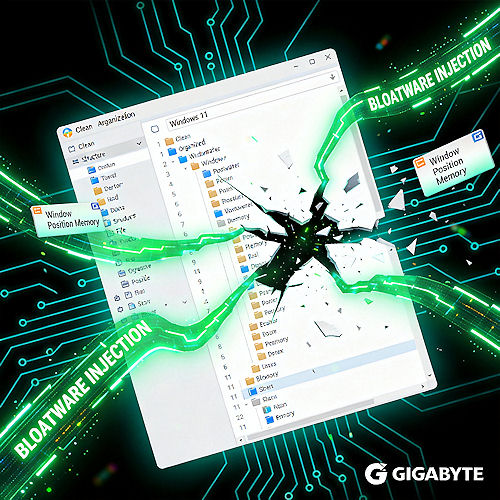
Windows uses a function in the registry called “ShellBags” to store specific view settings for every single folder you open – including the window’s size and position.
Gigabyte Smart Backup installs a so-called “Shell Extension” to display status icons directly on your files in File Explorer. To do this, the program “hooks” (injects) code directly into the explorer.exe process. The error occurs because this code conflicts with Windows’ ability to write to ShellBags when windows are closed or the system shuts down. Gigabyte’s process simply blocks the action.
The Dilemma: Why Does Microsoft Allow This?
One might ask: Why does Microsoft allow third-party programs to tamper with explorer.exe at all? Couldn’t they just lock the system down completely?
It is a classic balance between security and freedom. Many users – especially on the PC platform – love to customize their system, myself included. If Microsoft completely blocked these “hooks,” popular programs like WinRAR, 7-Zip, Dropbox, or various file tools would lose their integration in the right-click menus. We want an open system where software can interact with the user interface. The downside is that when a manufacturer like Gigabyte delivers sloppy code, it affects system stability.
Other Potential Culprits
Although Gigabyte Smart Backup is the big sinner here, the principle is the same for others:
• ASUS Armoury Crate: A comprehensive suite that digs deep into the system and can create conflicts. It is notorious for installing services that cause the CPU to run unnecessarily high or create conflicts with RGB lighting, though they usually do not ruin window placements.
• MSI Dragon Center: Can overwrite Windows’ own power plans and affect system behavior after sleep so the screen doesn’t turn off, but again – window placement is rarely affected.
• Bad Shell Extensions: Older programs for the right-click menu (e.g., old versions of WinRAR or bad PDF converters) can technically create exactly the same conflict in explorer.exe.
Unfortunately, this is the flip side of modern “convenience.” We avoid chasing drivers manually, but the price is often that we let the manufacturers’ unfinished software into the heart of our operating system.
So, if your new, delicious PC is acting weird, take a critical look at the software the manufacturer has “gifted” you, including the accessories in the motherboard driver package.
Just because Windows comes from Microsoft, it is not always necessarily Microsoft’s fault that something does not work correctly or as intended, including memory for window sizes and positions – because it actually works perfectly, as we know it, and as it should in Windows 11.
Sometimes the best upgrade is simply to uninstall the “Smart” features and let Windows be Windows.
All images are generated with AI.